How TalkerApp works
TalkerApp is an app for writing and speaking, a kind of text-based AAC (augmentative and alternative communication): you type, and TalkerApp says it aloud. What sets it apart is AI, in two places. It predicts what you want to write and suggests whole sentences, and its AI voices sound natural and carry emotion instead of sounding like a robot.
Suggestions that forgive typos
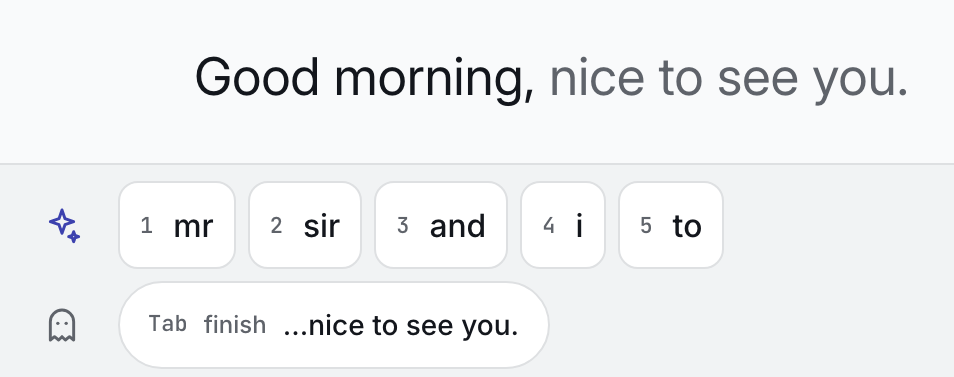
Numbered word suggestions sit above the keyboard and whole sentences beneath, in Polish or English. Pick one with its number, with Tab or with a tap. Basic suggestions work at once, without AI. Add AI, on your computer or in the cloud, and they follow the context of your whole message.
This picture is wider than your screen: scroll sideways to see all of it.
What it forgives
tehbecomesthe
A swapped or wrong letter
dontbecomesdon't
A missing apostrophe
plsbecomesplease
Consonants alone
gmbecomesGood morning
Shorthand from a built-in list
- A whole sentence, one key
- A gray “Finish” sentence waits after your cursor. Tab adds all of it; Shift plus the right arrow adds one word.
Your words, in a voice you choose
TalkerApp is a text-to-speech app: it says what you type. It does not listen or transcribe.
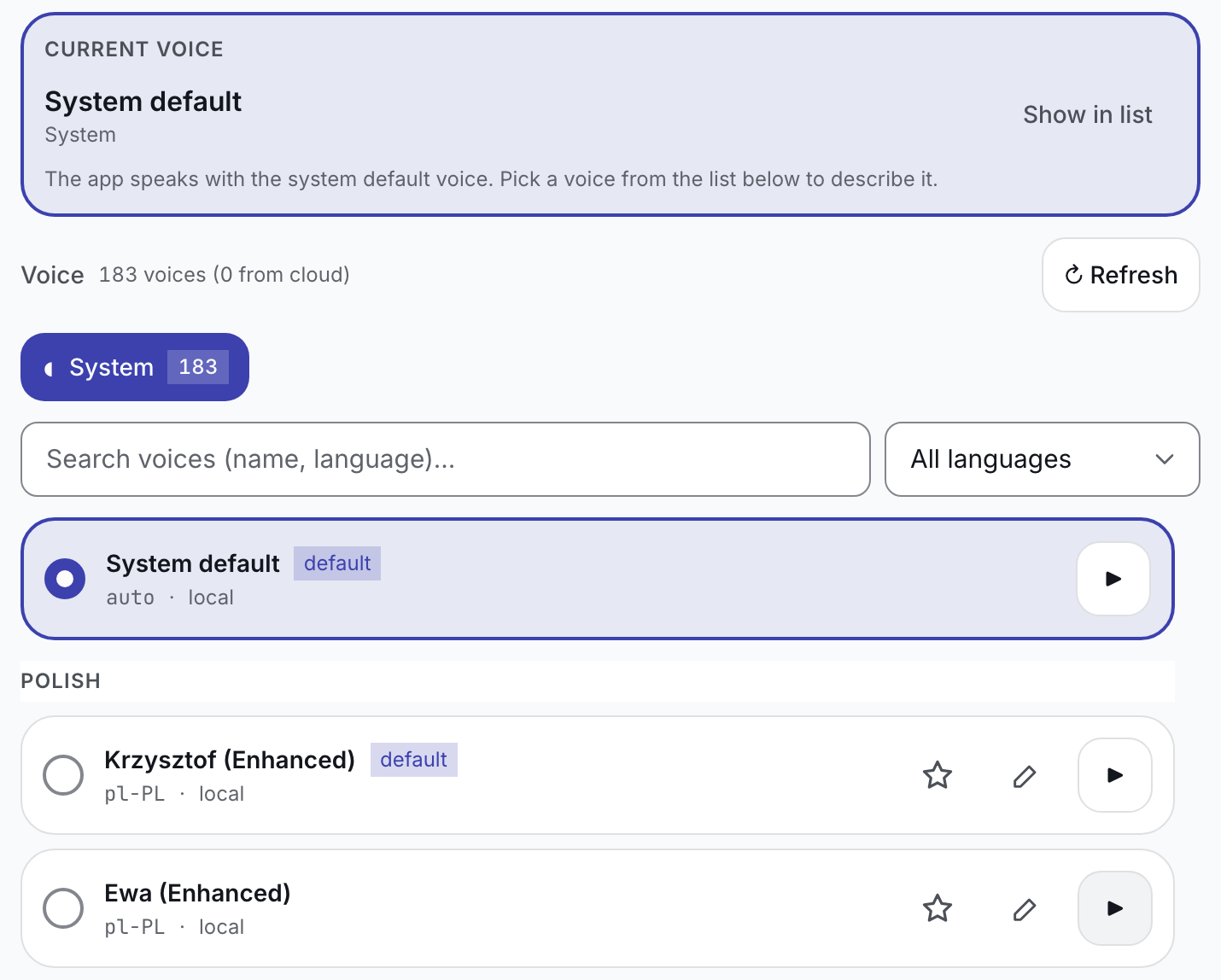
Six voice sources: the free system voice built into your computer, which works offline and starts at once, and five cloud services with natural-sounding AI voices (Google, ElevenLabs, Gemini, Cartesia and Inworld).
“Your own key” is a code from your account with a cloud service, which you paste into TalkerApp. You pay that service directly; many include a free allowance.
More about your own keyIf a key is rejected or your spending limit is reached, the system voice speaks instead.
This picture is wider than your screen: scroll sideways to see all of it.
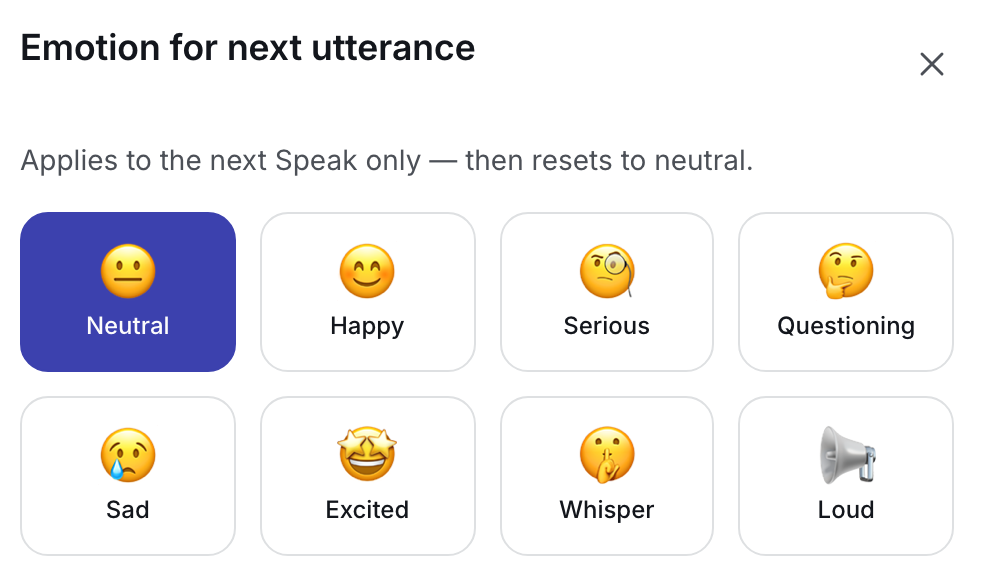
Emotion for the next sentence
Choose neutral, happy, serious, questioning, sad, excited, whisper or loud for the next sentence. Gemini and ElevenLabs voices act it out, and can give part of a sentence its own emotion.
Emotion in cloud voices and the full list of cloud voices are part of Pro. With your computer’s own voice, emotion changes pace and pitch in every plan.
This picture is wider than your screen: scroll sideways to see all of it.
Type the way that works for you
- Keyboard and large on-screen keys
- Type on your keyboard, or click large keys with a mouse. Choose one of four key sizes, or the Large ABC grid of big keys in alphabetical order.
- Switch scanning
- A highlight steps through the rows, then the keys; press your switch when it reaches the one you want. It works in the TalkerApp window, not in the overlay (the keyboard for other apps, below), and has not been tested with switch hardware yet.
- Hold time and tremor filter
- A key types only after you hold it for the time you set, and a repeated tap that comes too fast is ignored.
In a conversation
This picture is wider than your screen: scroll sideways to see all of it.
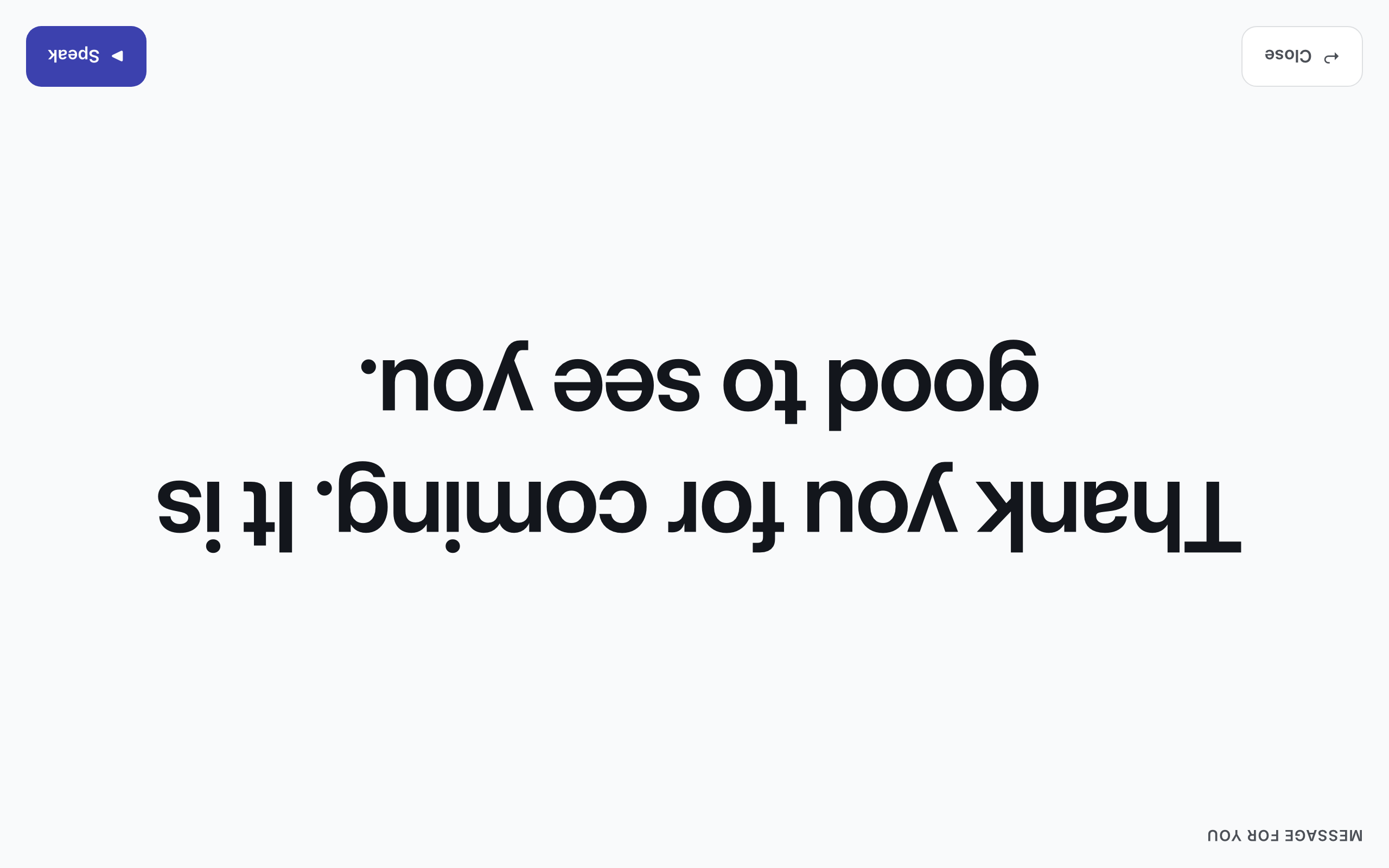
- Partner view
- Press F4 and your message fills the screen in very large letters, turned 180°, so the person across the table can read it.
- Emergency phrases
- Phrases you mark as urgent go on a sheet of large buttons. One press speaks the phrase at once, in a neutral tone. It does not call anyone. In this version the ready-made phrases are in Polish.
Write and speak in other apps too
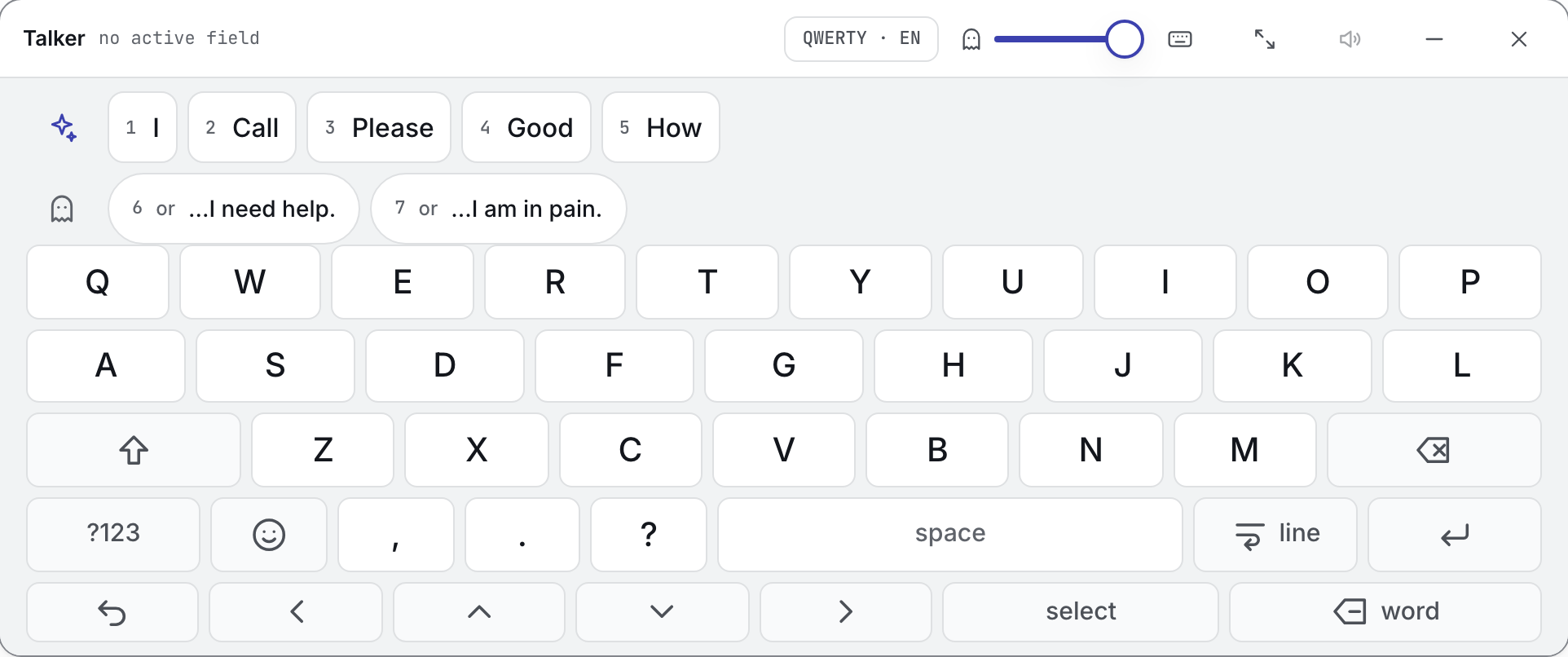
A Pro feature.The overlay is like an on-screen keyboard, only on steroids. It floats above other windows and types wherever it can find the text cursor (the caret). It reads the field you are writing in, so suggestions know the context, and its speaker button reads that field aloud.
We built it first of all for people who use a computer only with a mouse or with their eyes, without a physical keyboard. You can shrink it to a strip under one finger or enlarge it to huge keys that fill the screen.
It is built not to take focus, so the app you are writing in stays active and your cursor stays where it is.
Open and close it with
- Mac
- Command, Option, K
- Windows
- Control, Alt, K
This picture is wider than your screen: scroll sideways to see all of it.
Good to know
- In the overlay, cloud suggestions send the text before your cursor in the other app (the last two paragraphs), whoever wrote it.
- A Mac asks for the Accessibility permission. On Windows, apps that run as administrator do not accept text from the overlay.
What stays on your computer, and what can leave
You need no account with us, and we collect no usage statistics. Nothing you write leaves your computer until you switch a cloud service on with your own key.
Stays on your computer
- Your drafts, history and phrases, except the few lines that go along with a cloud suggestion
- Your personal dictionary and what TalkerApp learns about the way you write
- Your keys, in your system’s secure storage; a key goes only to its own provider
Leaves only if you switch a cloud service on
- For suggestions: the last two paragraphs before your cursor, with a few details such as your name and persona (a saved profile for one audience: its description, tone, and the words and style you approved)
- In the overlay, cloud suggestions send the text before your cursor in the other app (the last two paragraphs), whoever wrote it.
- For a cloud voice: the sentence to speak, and with the Gemini voice also text you are still typing
- With shorthand, auto-correct or style analysis set to the cloud: the sentence to expand or correct, or your persona text
- Sent straight to the provider you chose, with your own key
- On Gemini’s free plan, Google may use the text you send, except in the European Economic Area, Switzerland and the UK.
The voice name beside the Speak button shows where the sentence goes when you speak it. System means that sentence stays on your computer. Cloud suggestions are a separate setting.
Without internet you can still type, get suggestions and speak with your computer’s voice. So do local models, add-ons you download once in the app to improve suggestions. They run on your computer and need disk space and memory.
Read the privacy policy for this website and the waitlistWhat TalkerApp is not
- It is an app for writing and speaking that you use yourself. It does not replace an assessment by a specialist.
- For now it runs on Macs with Apple silicon (M1 or newer) and on Windows 10 or 11 on 64-bit Intel or AMD computers (not Windows on ARM). iOS and Android are planned, with no dates yet.
Get an e-mail when TalkerApp is ready
Leave your e-mail address and say whether you use a Mac or Windows. We will let you know when TalkerApp is ready for your computer.